

How to set up cry alerts on your baby monitor
A good alert wakes you when your baby needs you, and lets you sleep the rest of the time. Here's how to set up Lullink, one setting at a time.
How Lullink decides to alert you
The camera continuously measures the sound level in the room, shown on the sound meter, in decibels. An alert goes off when the noise stays above the threshold for the duration you chose. So you're not overwhelmed, Lullink sends at most one sound alert per minute, and one motion alert every 15 seconds.
These are camera settings: they apply to all parents, and each of them can change them from their own device.
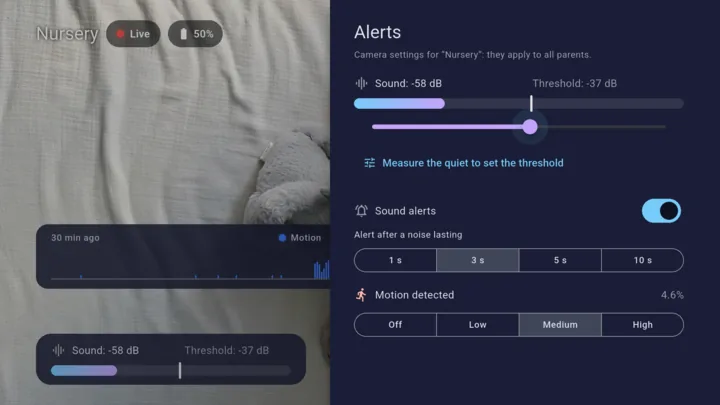
1. The threshold: let “Measure the quiet” set it
The easiest way: when the room is quiet (baby asleep, windows closed), tap Measure the quiet. Lullink listens to the background noise and sets the threshold 10 dB above it. A fan, a humidifier or street noise no longer triggers an alert; crying does.
You can then adjust the threshold by hand: lower to be alerted at the slightest coo, higher if the background noise varies a lot.
2. Noise duration: filter out the sighs
Choose how long the noise must last before an alert: 1, 3, 5 or 10 seconds. With 1 second, you're alerted right away, but also for a hiccup or a slamming door. With 5 or 10 seconds, only crying that lasts wakes you up.
The default setting, 3 seconds, is a good balance. Adjust after a night or two, with the help of the night log.
3. Motion
The camera can also detect motion, with three sensitivity levels (or Off):
- Low: only clear movements count;
- Medium: a good starting point;
- High: the slightest movement counts. Handy for a baby who wakes up without crying, but you'll get more alerts.
4. Check before bedtime: the test alert
On the camera, Send a test alert to parents sends a real alert to each parent: the notification, the sound and the connection are checked. On your phone, Test the alert triggers one 10 seconds later: lock it to check the notification and the sound.
5. Get alerts, even with your phone locked
- Allow notifications for Lullink on each parent phone.
- On Android, exclude Lullink from battery saving, especially on Samsung: Settings → Apps → Lullink → Battery → Unrestricted. Keep the “Lullink is listening” notification, followed by your room's name: it's what keeps listening active.
- On iPhone, the room sound keeps playing with the phone locked, and the alert chime is played by the app: it rings even in silent mode.
Special cases
- During a lullaby or a soothing sound, sound alerts are paused, because the microphone hears the music. Motion is still monitored.
- Quiet listening: the room sound only reaches you when there is noise. The rest of the time, silence.
- Turning sound alerts off: a switch turns them off for all parents, for example during the evening bath. Remember to turn them back on.
- Lost connection to the camera: if your phone no longer receives the camera, or if it stops filming, you're warned too. Check that it's plugged in and that Lullink is open on screen.
- Power, battery and heat: Lullink warns you if the camera is unplugged, if its battery runs low or if it overheats.