
Open ports: seeing the services reachable on your network
Your NAS, your printer, your camera and even your access point offer services on the network, each behind a port. Knowing which ones are open lets you turn off those that serve no purpose.
What is a port?
A device on the network can offer several services at once: a settings page, file sharing, a video stream. Each service waits for connections behind a number, its port. An open port is a service that answers.
A few common examples:
| Port | Service | Where you find it |
|---|---|---|
| 80, 443 | Web pages (HTTP, HTTPS) | Settings page of the access point, printer, NAS or camera |
| 53 | DNS | Access point |
| 445 | File sharing (SMB) | NAS, computer |
| 22 | Remote access (SSH) | NAS, computer, server |
| 631, 9100 | Printing (IPP, direct printing) | Printer |
| 554 | Video stream (RTSP) | Camera |
Checking a device with Lullink Tools
- Open Open ports.
- Choose the device to check, for example your NAS (nas.local, or its address such as 192.168.1.20).
- Choose the ports: common ones, 1 to 1024, or a range, then start.
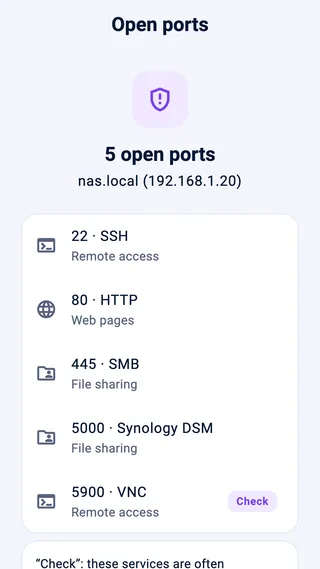
Reading the result
- Open: a service answers on this port.
- Closed: the device answers but refuses: there is no service behind this port.
- No reply: nothing in time, often a firewall filtering it.
An open port is not a danger in itself: what matters is the service. A printer's settings page on port 80 is normal. What you want to spot are the services you do not use, and those that are poorly protected.
Services marked "Check"
Lullink Tools marks "Check" the services often left unencrypted or without a password:
- FTP (21) and Telnet (23): old protocols that send passwords in clear text;
- remote desktop (3389) and VNC (5900): remote control of the screen;
- Redis (6379) and MongoDB (27017): databases, sometimes installed without a password.
If you don't use them, turn them off in the device's settings. If you do, protect them with a strong password and keep the device up to date.
Only at home
Lullink Tools only checks devices on your local network: an internet address is refused. Only check devices you are allowed to check: your own, or those entrusted to you.
From the internet, a device at home is normally reachable only if the access point allows it: port forwarding, UPnP, or an open IPv6 firewall. These settings are in the access point itself.