
Slow Wi-Fi: is it the Wi-Fi or the internet connection?
A video that stutters, a page that takes ages: before moving the access point or calling your provider, you need to know where the slowdown is. Three measurements are enough to find it.
Two links, two possible causes
Between your device and a website, there are two links at home:
- the Wi-Fi, between the device and the access point (the router, base station or repeater it goes out through);
- the internet connection, between the access point and your provider.
Slowness comes from one or the other, sometimes from the website itself. The three measurements below tell them apart, in order, with Lullink Tools.
1. Check how the device is connected
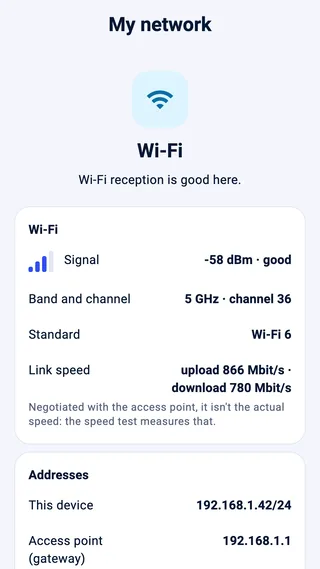
Open My network. The first trap is a simple one: a phone that quietly switched to mobile data because the Wi-Fi was too weak, or a VPN left on, which slows everything down.
On Android and Mac, then look at the Wi-Fi signal:
- −55 dBm and better: excellent;
- down to −67 dBm: good;
- down to −75 dBm: fair, the speed starts to drop;
- below: weak, the slowness most likely comes from the Wi-Fi.
The screen refreshes every 2 seconds: walk around with the device to find the weak spots. On iPhone, iPad and Apple TV, Apple does not give apps the signal: go straight to the next step.
2. Compare the ping to the access point and to a website
Open Ping and run 60 pings to the access point, then 60 to a website you use.
- To the access point, on Wi-Fi, the response time is usually a few milliseconds, steady and without loss. If it is high, irregular (high jitter) or loses replies, the problem is in the Wi-Fi.
- If the access point answers well but the website answers slowly or loses replies, the problem is beyond the access point: the internet connection, or the website itself. Try a second website to tell the difference.
Some access points do not answer ping: in that case, rely on the next step. To read these figures in detail, see Understanding ping.
3. Measure the speed between two devices
Run Speed between two devices between the slow device and another device at home, ideally connected to the access point by cable (the detailed method).
- If the local speed is good, well above your internet plan, but the internet stays slow, the Wi-Fi is not the cause.
- If it is low, or if latency soars during the test, the Wi-Fi is the weak link.
If it is the Wi-Fi
- Place the access point up high, in the middle of the home, in the open: not inside a cabinet or behind the TV.
- Choose the right band: 5 or 6 GHz close to the access point, which is faster; 2.4 GHz further away, as it goes through walls better.
- Change the channel if there are many neighboring networks: on 2.4 GHz, channels 1, 6 and 11 do not overlap. On Android and Mac, My network shows the channel in use.
- Add a repeater or a mesh system for distant rooms, and check the gain with a new measurement.
- Use a cable for what does not move: TV, game console, desktop computer. They free up the air for the others.
If it is the internet connection
- Restart the access point, then measure again.
- Measure at different times: slowness only in the evening can come from a busy network at your provider.
- Check that no device at home is saturating the connection: online backup, large download, updates.
- If nothing helps, contact your provider with your measurements: a good, steady ping to the access point and a slow or lossy ping to the internet show that the problem is not on your side.