
Understanding ping: response time, jitter and packet loss
Ping tells you how quickly a target answers, whether that time is steady and whether answers get lost. Three figures that explain video calls that drop and games that lag.
What is ping?
A ping is a tiny message sent to a target (an access point, a computer, a server), which sends it straight back. The round-trip time, in milliseconds (ms), is the response time. By repeating it once per second, you also get the jitter and the loss.
Ping does not measure speed. A connection can have plenty of speed and a bad ping: downloads are fast, but video calls and online games, which need quick and steady replies, suffer.
Response time
This is the delay between sending and the reply. It depends on the distance and on each piece of equipment along the way.
- To the access point: a few milliseconds on Wi-Fi, under 1 ms by cable.
- To a website in the same country: usually a few dozen milliseconds at most, a little more on 4G or 5G.
- To another continent: 100 ms or more. Even in fiber, light takes about 10 ms for a 1,000 km (620 mile) round trip.
For video calls and online gaming, under 20 ms with low jitter is ideal. Beyond 100 ms, the lag is noticeable in conversation and in fast-paced games.
Jitter: how steady it is
Jitter measures how much the response time varies from one ping to the next. A steady 20 ms ping is better than one swinging between 5 and 80 ms.
- A few milliseconds: very good.
- Above 30 ms: voices break up in calls, the picture stutters, games jump around.
High jitter often comes from busy or disturbed Wi-Fi (neighboring networks on the same channel, a device far from the access point), or from a connection saturated by a download.
Loss
These are the pings left unanswered, as a percentage. On a healthy network, it is 0%. Even 1 or 2% can be felt: dropouts in calls, a character jumping from place to place in a game. Loss mostly comes from a weak Wi-Fi signal, interference or overloaded equipment.
Measuring with Lullink Tools
- Open Ping.
- Choose the target: the access point, a device at home, the Lullink server or the site of your choice.
- Choose the number of pings, one per second: 10 for a quick look, 60 for a minute, 600 for ten minutes to catch intermittent problems.
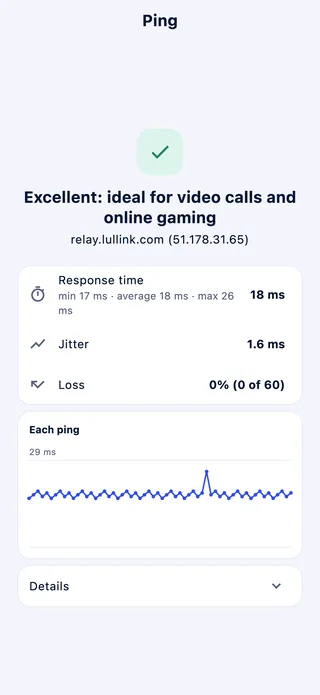
The result starts with a sentence that says what the connection is worth for video calls and online gaming, then gives the response time (minimum, average, maximum), jitter, loss and the curve of every ping.
Finding where the problem comes from
Compare two targets. If the access point answers well but the website does not, the problem is beyond your home: the internet connection or the website. If the access point itself answers badly, it is the Wi-Fi. The guide Slow Wi-Fi: is it the Wi-Fi or the internet connection? walks through the steps.
When a target does not answer
- It is off, or not on the network.
- It ignores ping: many computers and some access points do, by setting. It does not mean they are down.
- On iPhone, iPad and Mac, check that Lullink Tools has local network access (iPhone and iPad: Settings → Privacy & Security → Local Network; Mac: System Settings → Privacy & Security → Local Network).