
How to measure the real speed of your Wi-Fi between two devices
An internet speed test measures the whole route to a distant server, not your Wi-Fi. To know what your Wi-Fi really delivers, room by room, you need to measure between two devices at home. Here is how, and how to read the result.
An internet speed test does not measure your Wi-Fi
An internet speed test exchanges data between your device and a server, often hundreds of miles away. It measures the whole route: the Wi-Fi, the access point, your internet plan, then the internet up to the server. The result is that of the slowest link.
If your plan tops out at 300 Mbit/s, an internet test will never go above 300 Mbit/s, even if your Wi-Fi can deliver twice as much. And if it is slow, it does not tell you where the problem is. To know your Wi-Fi, you have to measure it on its own: between two devices at home, without going through the internet.
What you need
- Two devices with Lullink Tools: iPhone, iPad, Mac, Android phone or tablet, Apple TV or Android TV, in any combination.
- The same network for both, and not a "guest" network, which isolates devices from each other.
- No active VPN: it can stop the two devices from seeing each other.
- On iPhone, iPad and Mac, local network access allowed for Lullink Tools: the system asks the first time you open it.
Running the test
- Open Speed between two devices on both devices.
- On one, tap the other device in the list.
- The first time, compare the 6-digit code shown on both screens, then accept on the other device. After that, the two devices recognize each other: no more code.
- Choose the direction (both, upload or download) and the duration, then start the test.
The test data goes directly from one device to the other, encrypted. It goes neither through the internet nor through our servers.
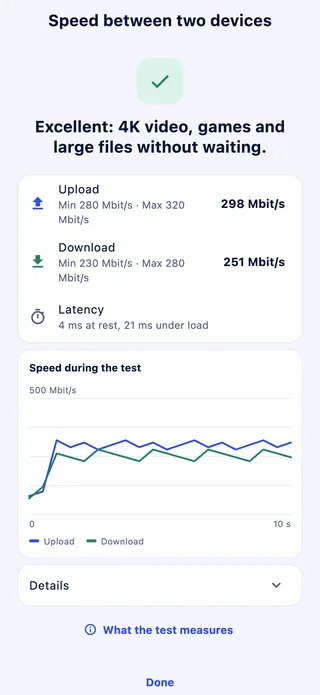
Reading the result
- The sentence at the top turns the speed into uses: 4K video, games, large files.
- Upload and download: the average in each direction, with the minimum and maximum. A gap between the two directions is common on Wi-Fi: a phone often transmits less powerfully, and with fewer antennas, than the access point.
- The curve: steady, the Wi-Fi is stable; jagged or with dips, it is affected by obstacles or interference.
- Latency at rest and under load: if it rises sharply during the test, the network saturates as soon as it is busy. That is what makes a video call drop while another device is downloading.
Why the result seems low
Two reasons almost always explain a lower speed than expected.
- Link speed is not throughput. The figure shown in the settings (for example 1,201 Mbit/s) is the speed negotiated with the access point. The real throughput is always much lower: part of the airtime is used by Wi-Fi itself, and nearby devices share the air.
- Two devices on Wi-Fi means two trips through the air. Data goes from one device to the access point, then from the access point to the other device, on the same channel. The measured speed is then often close to half of what a single device would get.
The right way to judge the Wi-Fi in a room
For the result to depend only on the Wi-Fi in the room, only one of the two devices should be on Wi-Fi.
- Connect the first device to the access point with an Ethernet cable: a Mac, an Apple TV or an Android TV work very well.
- Take the second one, on Wi-Fi, to the room you want to measure, and start the test toward the first.
- Repeat in each room: every measurement is kept in the device's history, so you can compare.
On Android and Mac, My network also shows the Wi-Fi signal, band and channel: useful to understand why a room is less well covered.
Measuring without an access point
To test two devices against each other, without an access point, a phone can create its own Wi-Fi network:
- Android: Settings → Hotspot (or Tethering), then turn it on;
- iPhone: Settings → Personal Hotspot → Allow Others to Join (with a plan that allows it).
Join that network with the other device, then open the test on both. The test itself does not use mobile data.
If the speed is low
- Move closer to the access point, or give it room: up high, in the middle of the home, away from thick walls and metal objects.
- Close to the access point, prefer the 5 GHz (or 6 GHz) band, which is faster; further away, the 2.4 GHz band reaches further.
- For distant rooms, a repeater or a mesh Wi-Fi system helps: measure before and after to check the gain.
- For a device that does not move (TV, desktop computer), a cable remains the fastest and most stable connection.
To find out whether slowness comes from the Wi-Fi or the internet connection, also read Slow Wi-Fi: is it the Wi-Fi or the internet connection?